Bring another screen into view.
Share a phone, tablet or desktop screen over your local network. Pair the devices and keep the next step on the screen in front of you.
Bring another screen into your workspace
Let a phone capture or demonstrate while a computer or tablet displays and arranges the picture. Understand each role, then follow the guide for your devices.
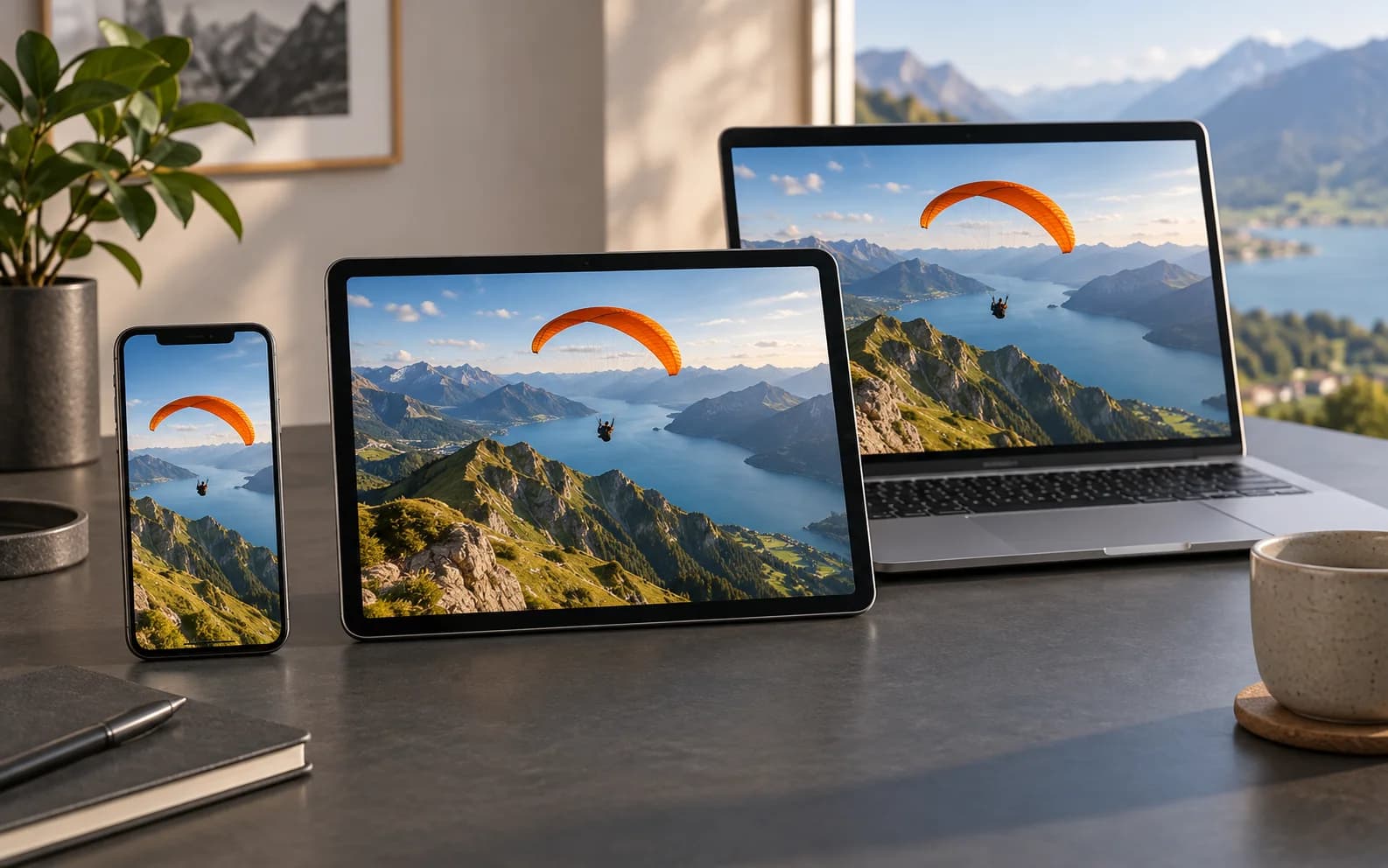
The sender shares its screen after system permission is granted. Prepare the content you want to show first.
Role illustration using AI-generated scenes. This page does not establish a connection or indicate that public-internet relay is available.
Find the steps for my devicesOne pairing. A clearer workflow.
QR and manual connections start differently. Both require the sender to authorize sharing before the receiver can see its picture.
- 01
Choose QR or manual connection
For QR pairing, the receiver displays the code and the sender scans it. For manual pairing, start sharing on the sender first, then enter its IP, port and six-digit code on the receiver.
- 02
Confirm system sharing permission
Approve screen capture or broadcast on the sender. Reception has started when the picture keeps updating on the receiver; if it freezes, first check that sharing is still active.
- 03
Use the received picture
Preview the incoming screen and use the integration available on your client. For device-specific steps, open the connection guide.
Before you start
Both devices need a reachable local network. Guest isolation, firewalls and missing permissions can block pairing. Screen sharing does not imply remote control or internet relay. Mobile receivers currently allow one active session.
Compare plansStart with the right build.
Choose your sending and receiving devices in the connection guide.
Help and answers