Light Workshop: shape the picture you see.
Explore four focused panels: styles, beauty, composition and adjustments. Make a change, compare it, and keep the version you like.
Frame the shot before shaping its look
Where the subject sits and how much space you leave for titles matter before a filter does. Switch the guides to explore how you would frame this shot.
 Rule of thirds
Framing illustration using an AI-generated scene, not a client screenshot or a LUT processing comparison.
Looks, framing and monitoring each have a job
These real screens come from the Android test record of October 2, 2026. Use them to understand the tools and their roles; the current beta layout may continue to change.
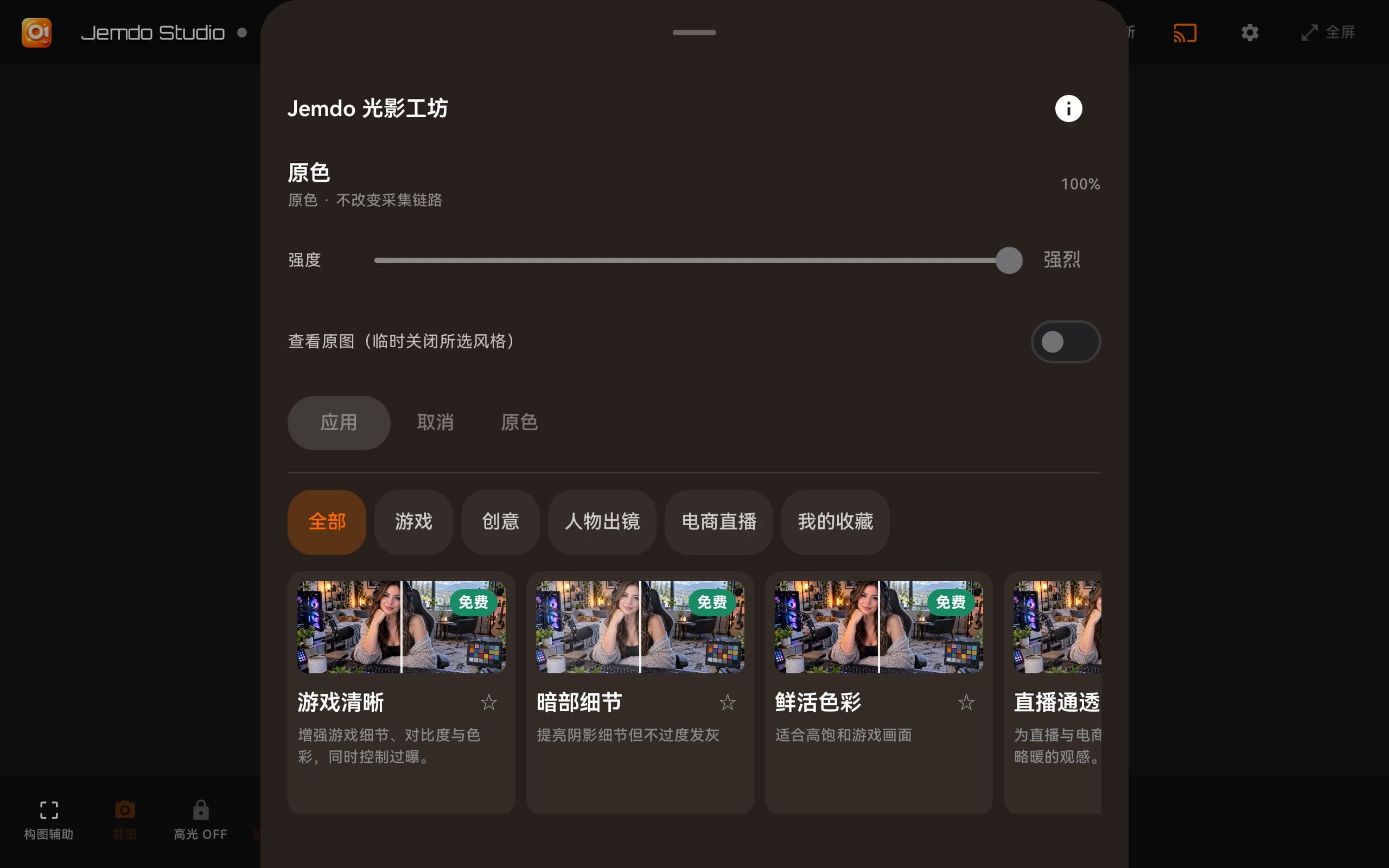
A clear starting point. Room to refine.
The workshop stays close to the preview so each choice has a visible result.
- 01
Choose a color style
Start with an available LUT, adjust its intensity and compare with the original. Different scenes may need a lighter touch.
- 02
Frame the subject
Use composition references to check the subject and margins. Keep room for other sources when you plan a multi-view layout.
- 03
Refine and compare
Fine-tune color and brightness with the controls available on your platform. Keep the original reference visible when judging a change.

Before you start
Tools vary by platform and released plan. Custom LUT import and the full monitoring toolkit belong to ULTRA; not every workshop control requires a paid plan. See the plan page for published availability.
Compare plansStart with the right build.
Try a style on a familiar scene and compare it with the original.
Help and answers